
Verify and Install HEVC Codec Enable Modern GoPro Video Playback
Ensure your Microsoft Windows computer has the required HEVC codec installed for smooth playback of modern GoPro camera footage in maps.video or use the workaround solution instead.
The application was intuitive to use and displayed exactly the kind of information we needed to show to our clients. It was very convenient not having to download additional software on the user or client side. Whenever video roadway survey work comes along, we know who to turn to!
— Donovan Bradshaw, Lead Geotechnical Engineer

Loved it. Having worked with it the past few months with a few guys, it’s been very easy to work with. With the amount of video files we have, all we need to have is an external hard drive plugged in and that’s it. Earlier this week, we sat down with the town to show them the work we’ve done, and they loved it as well
. — Victor Zhang, PE Sr. Structural/Bridge Engineer
The maps.video local application has made it really easy to access and control HD video playback, which has made determining the location of roadway features very efficient. It’s allowed me to create a fully mapped video library of a city or town’s road network using hardware (GoPro cameras) that I already owned.
— Lance Baden, Consultant

The application was intuitive to use and displayed exactly the kind of information we needed to show to our clients. It was very convenient not having to download additional software on the user or client side. Whenever video roadway survey work comes along, we know who to turn to!
— Donovan Bradshaw, Lead Geotechnical Engineer
Loved it. Having worked with it the past few months with a few guys, it’s been very easy to work with. With the amount of video files we have, all we need to have is an external hard drive plugged in and that’s it. Earlier this week, we sat down with the town to show them the work we’ve done, and they loved it as well
. — Victor Zhang, PE Sr. Structural/Bridge Engineer
The maps.video local application has made it really easy to access and control HD video playback, which has made determining the location of roadway features very efficient. It’s allowed me to create a fully mapped video library of a city or town’s road network using hardware (GoPro cameras) that I already owned.
— Lance Baden, Consultant
Screenshots and Instructions
Follow these simple steps to verify or install the codec via the Microsoft Store
HEVC video codec is required to play videos from modern GoPro cameras that only record using that codec. Computers running Microsoft Windows don't usually have the codec pre-installed. See the images below for installation instructions so these videos can be played in maps.video.
Please note you may need to restart your computer for the new codec to register and work with your browser.
If the video is still black but the red marker moves along when playing you may need to update the computer's graphics card drivers to latest version(s). This may be necessary even for brand new personal computers.


If it still doesn't work speak to your I.T. representative or use the workaround below:
100% Compatible H.264 Video workaround
Follow these simple steps to transcode HEVC videos to older 100% maps.video compatible H.264 videos
Download GoPro Player from GoPro website
Open the GoPro Player App and click File->Batch Exporter
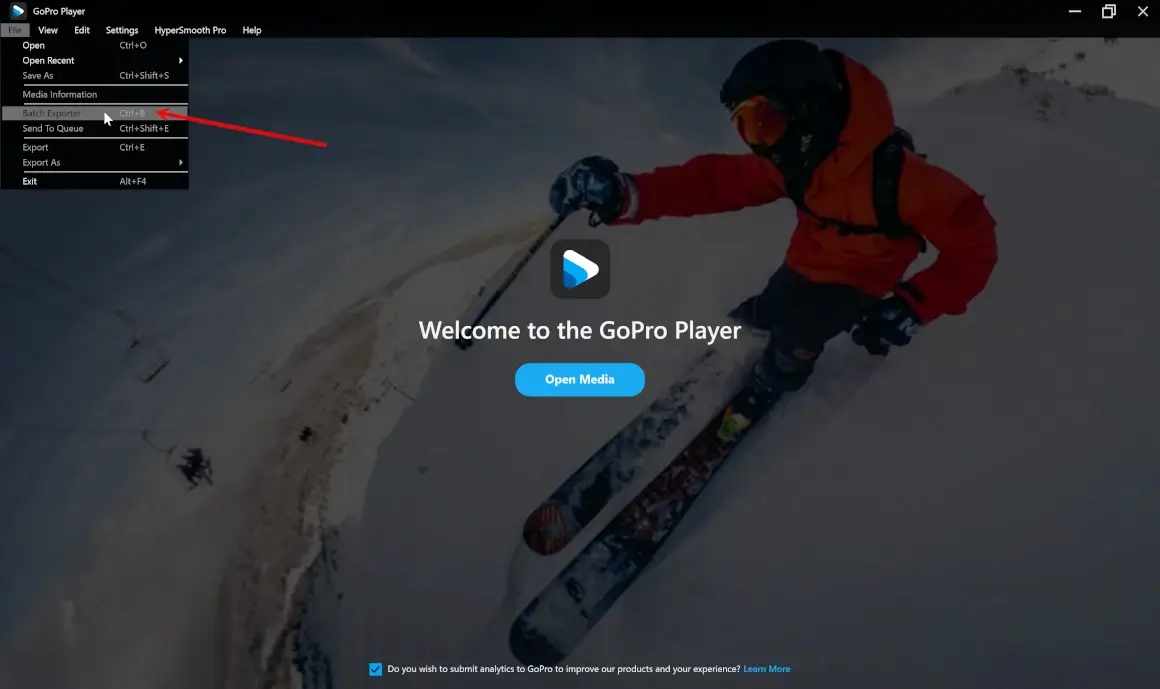
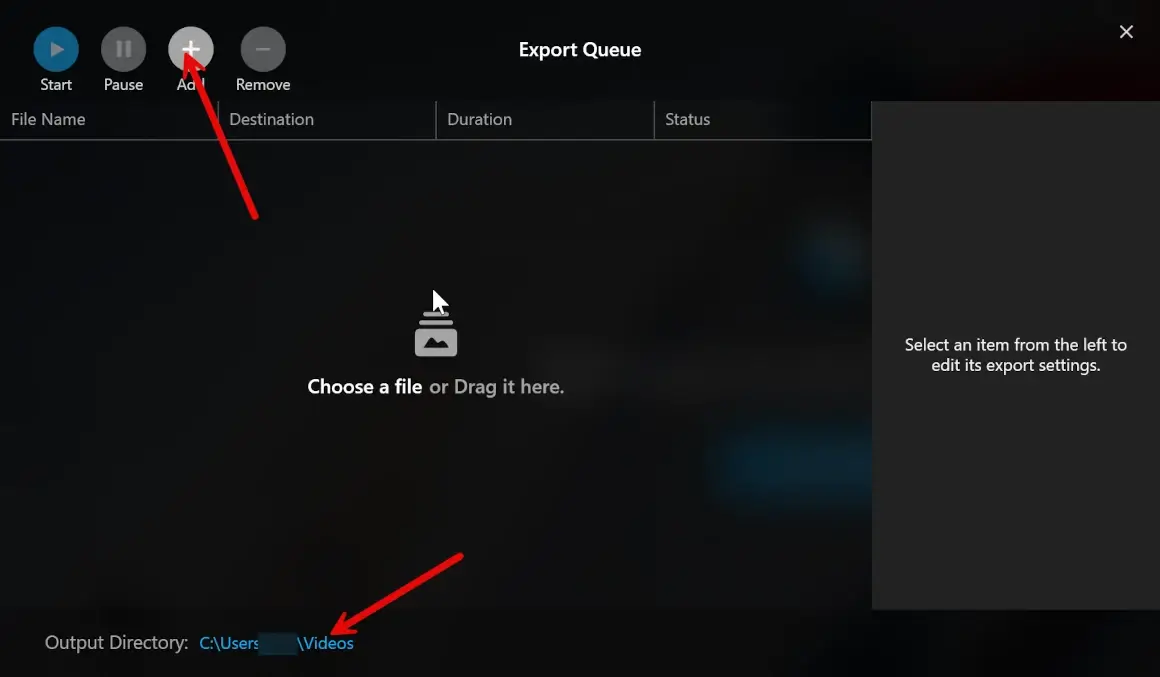
Configure the Output Directory. Click Add and choose a video(s).
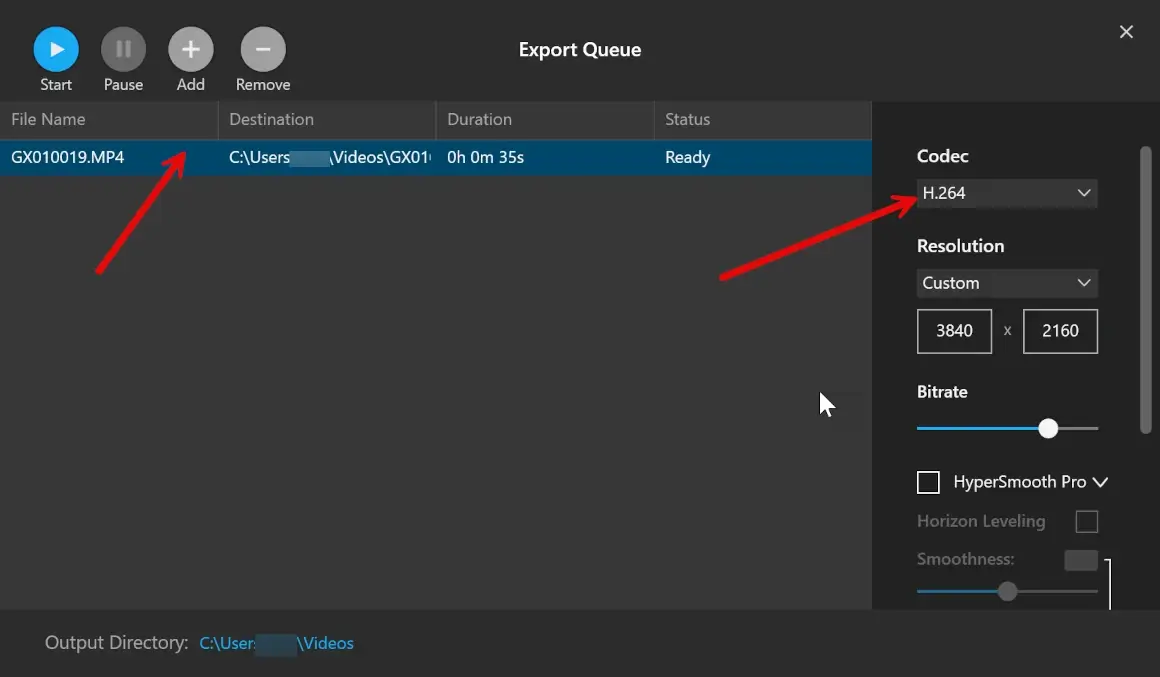
Click the video listing(s) and select H.264 from the drop down
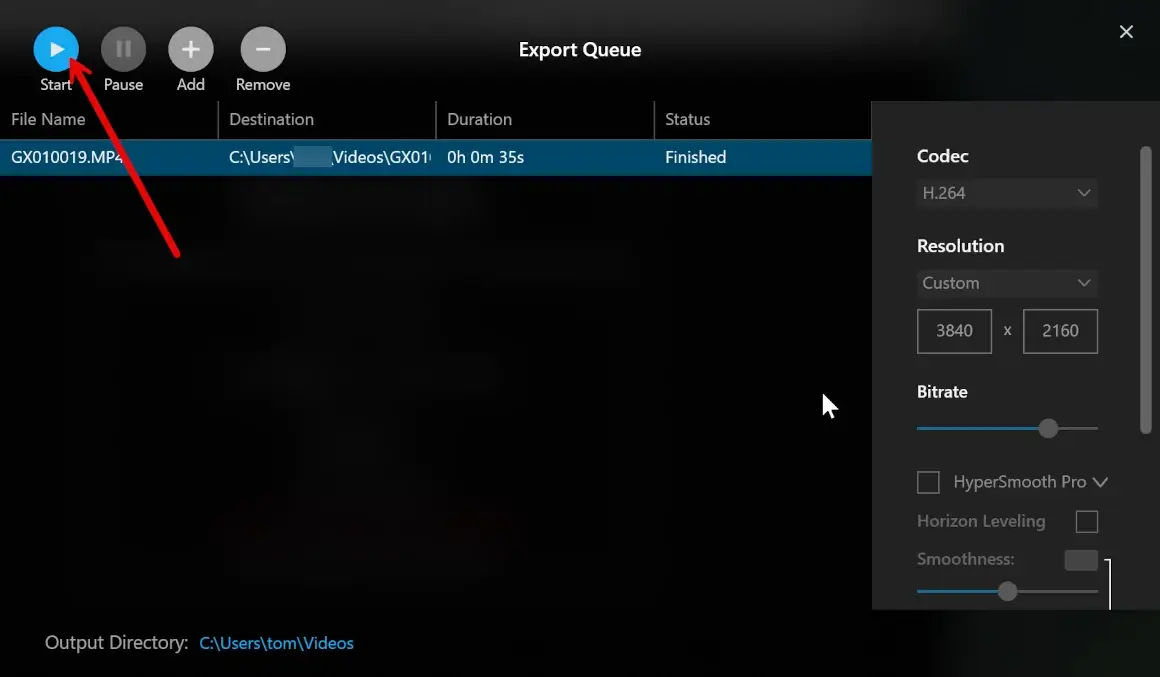
Click Start and wait until it finishes.
Go to the maps.video map and add the ORIGINAL VIDEO (not the processed video as the GPS data may have been removed).
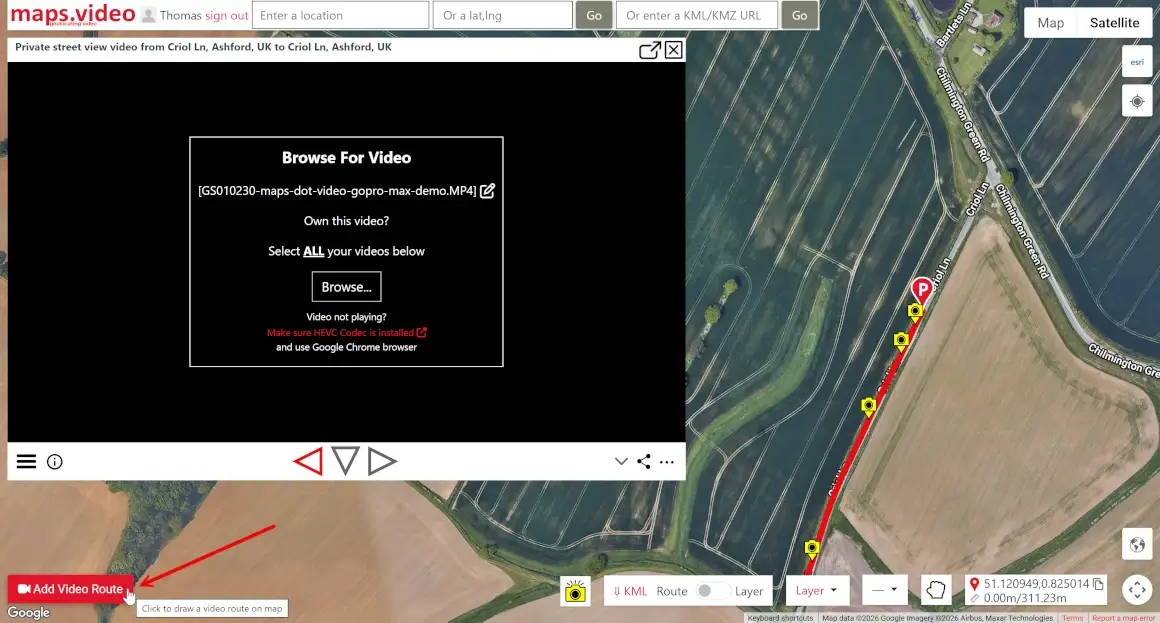
Once the video is added you may still see a black video so refresh the page.
You will now see the Browse... button.
Click it and select the PROCESSED VIDEO
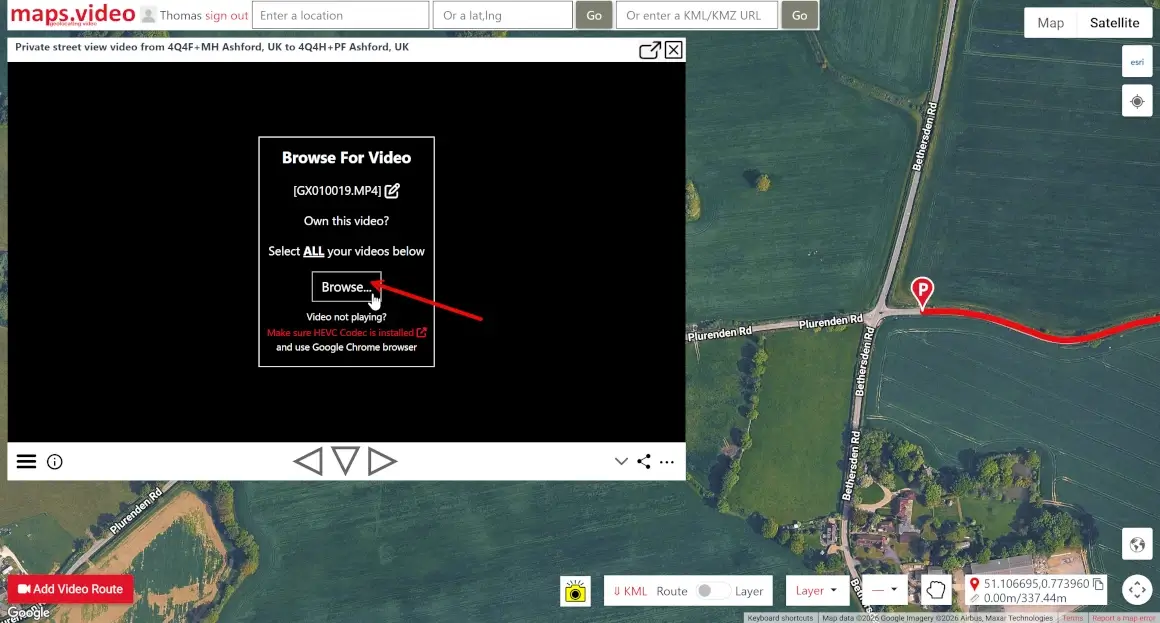
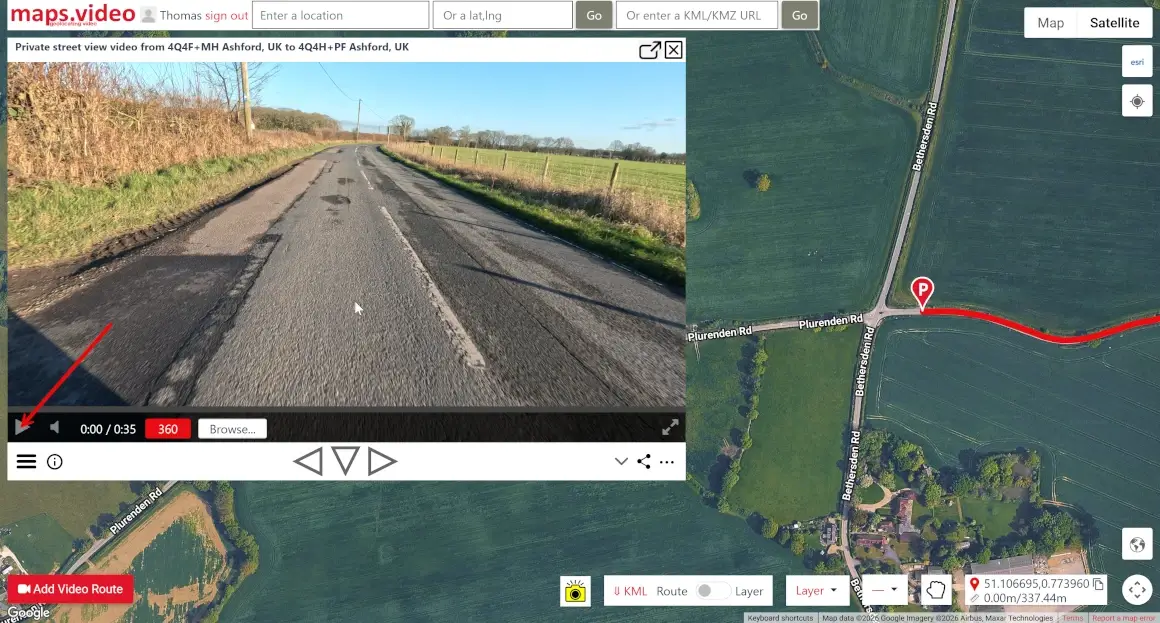
The video will load. You are good to go!
Click the play button.
You can bookmark this video page also as it has a unique id.
Each time you open this video map player page you will click that Browse... button and select the relevant video.
Tip: keep all your videos in the same folder. Add all the videos to maps.video and when you see the Browse... button click it and select all the videos in that folder.
Then you can click the marker pins and route lines and seamlessly transition from video to video.
"The maps.video local application has made it really easy to access and control HD video playback... It's allowed me to create a fully mapped video library of a city or town's road network using hardware (GoPro cameras) that I already owned."
Test Your Video Playback Now
Once your codec is verified, test your GoPro footage directly inside your browser on the interactive map.